ZZTool
How to Use the Keyboard Test Tool: A Practical Guide
What Is the Keyboard Test Tool?
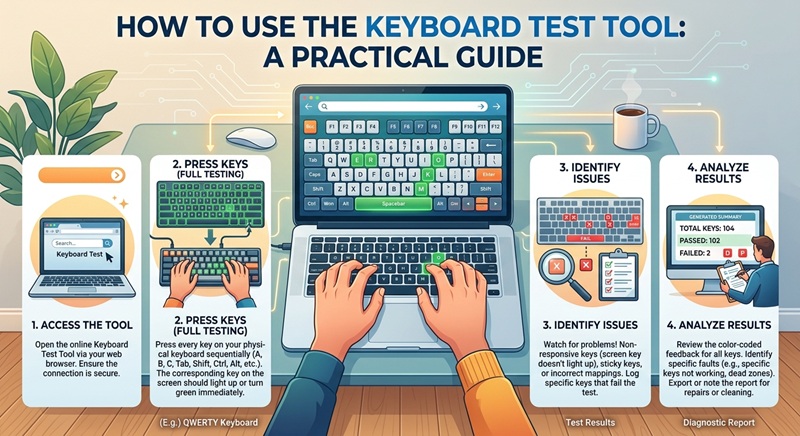
The Keyboard Test tool available at /en/tools/keyboard-test is a free, browser-based utility that helps you verify whether all keys on your physical or virtual keyboard are functioning properly. Whether you're troubleshooting hardware issues, testing a new keyboard, or checking for stuck keys, this tool provides instant visual feedback as you press each key.
Unlike software that requires downloads or installations, this tool runs directly in your web browser—making it fast, secure, and accessible from any device with internet access.
Why Use a Keyboard Tester?
Keyboards can develop problems over time due to dust, spills, wear and tear, or manufacturing defects. Common issues include:
- Unresponsive or delayed key presses
- Keys that register multiple inputs (double-typing)
- Stuck modifier keys (Shift, Ctrl, Alt)
- Non-functional special keys (like media or function keys)
Using a dedicated keyboard tester like the one on zztool.cc helps you quickly identify these problems without relying on typing in a text editor—which may not reveal subtle malfunctions.
How to Use the Keyboard Test Tool Step by Step
- Open the tool: Go to
in your web browser. No login or download is required.
- Allow keyboard focus: Click anywhere inside the test area to ensure the page is ready to receive keystrokes.
- Press each key: Start with the top row (Esc, F1–F12), then move through letters, numbers, symbols, and modifier keys. Watch for real-time highlighting of pressed keys.
- Check modifiers: Test combinations like Shift + A or Ctrl + C to confirm they register correctly.
- Look for anomalies: Note any keys that don’t light up, repeat unexpectedly, or fail to respond.
- Test special keys: If your keyboard has media controls, volume buttons, or programmable keys, press them to see if they’re detected (note: some special keys may not be recognized by browsers due to OS-level handling).
Tips for Accurate Keyboard Testing
To get the most reliable results from the Keyboard Test tool, follow these best practices:
- Use a clean browser: Avoid running the test in a browser with heavy extensions that might intercept keystrokes.
- Test in a quiet environment: Minimize distractions so you can focus on each key press.
- Try different browsers: If a key doesn’t register, test it in another browser (e.g., Chrome, Firefox, Edge) to rule out browser-specific issues.
- Restart your device: Sometimes, temporary OS glitches cause input lag—rebooting can resolve false negatives.
- Clean your keyboard first: Dust or debris under keys can cause intermittent failures. Gently clean your keyboard before testing.
Common Issues Detected by the Tool
The Keyboard Test tool excels at revealing several typical problems:
| Symptom | Possible Cause |
|---|---|
| Key doesn’t light up when pressed | Hardware failure, disconnected switch, or driver issue |
| Key registers twice or more | Sticky contact point or worn-out membrane |
| Modifier key stays active | Physical stickiness or software “sticky keys” setting enabled |
| Function/media keys not detected | Handled at OS/firmware level; not always visible to web apps |
When to Replace or Repair Your Keyboard
If the Keyboard Test tool reveals multiple dead or erratic keys, consider the following:
For mechanical keyboards, individual switches can often be replaced. Membrane keyboards (common in laptops) usually require full replacement if more than one or two keys fail. If you’re using an external USB or Bluetooth keyboard, try connecting it to another computer—if the same keys fail elsewhere, the keyboard itself is likely faulty.
Before purchasing a new one, retest after cleaning or updating your system’s keyboard drivers, as software fixes sometimes resolve apparent hardware issues.
Summary
The Keyboard Test tool at /en/tools/keyboard-test is a simple yet powerful way to diagnose keyboard problems quickly and safely. By following a systematic testing approach and applying practical troubleshooting tips, you can determine whether your keyboard needs cleaning, repair, or replacement—all without installing any software. Keep this tool bookmarked for quick checks whenever typing feels off!
![Free Tile Quantity Calculator Tool [Recommended]](/assets/blog/2026/1787786513_7ee0db51.jpg)